 Twinsub
How to add bilingual subtitles to a video on Mac
You have a video with no subtitles and want a bilingual file, with your language on top and the original below. This walks through the whole flow, ending in one .srt file that CapCut, Final Cut Pro and IINA can all use. The example is a Chinese-language video with English as the target; the languages are only an example and you can change them.
First, decide what you want to end up with
“Adding subtitles” can mean two different results, and they are made differently:
- A subtitle file (soft subtitles): a text
.srtstored next to the video. A player or editor reads it, and you can edit it or swap languages at any time. This guide is about this one. - Subtitles burned into the picture (hard subtitles): the text becomes part of the image and cannot be changed. For this, get the SRT first, then burn it in when you export from an editor such as CapCut or Final Cut Pro.
Making the SRT first and deciding about burning later saves the most rework: while proofreading you edit text, not re-render video.
The full flow
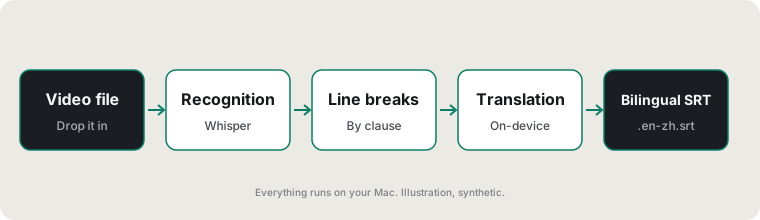
- Speech recognitionTurns the audio track into timed text in the original language. This sets the floor: a misheard word only gets mistranslated afterwards. Heavy accents, loud background music and many specialist terms all raise the error rate.
- Line breakingRecognition gives you one long run of text. It has to be cut into cues at pauses and punctuation, each on screen for roughly 1 to 7 seconds. A break in the middle of a word, or three lines in one cue, means this step was done badly.
- TranslationEach cue is translated into the target language. Translating cue by cue loses context, so watch pronouns and elliptical sentences. Machine translation is most likely to slip on numbers, names and product names.
- Merging into a bilingual SRTTwo lines under one timecode: target language on top, source below. Keep the top line short, or it wraps on a phone screen.
- Import and proofreadPut the SRT into an editor or player, play it against the picture, and fix proper nouns and line breaks.
Doing it on a Mac with Twinsub
Twinsub wraps the first four steps in one window:
- Drop in the videosYou can drop many at once; they are processed in a queue.
- Let it runRecognition runs on your Mac with Whisper large-v3-turbo. The source language is detected automatically (or you pick it), you choose the target language, and translation uses the on-device translation built into macOS; the available language pairs depend on what Apple's on-device translation supports. The first launch downloads the speech model once, and after that it works offline.
- Pick up the files beside the videoYou get a bilingual file
video.target-source.srt(for exampleInterview.en-zh.srt, target on top and source below, order switchable in Settings) and a target-only filevideo.target.srt(for exampleInterview.en.srt).
It only produces subtitle files: it does not burn them into the picture and has no built-in subtitle editor. Proofread in any text editor or editing app; see How to check and edit SRT subtitles.
Twinsub is coming soon to the Mac App Store and needs macOS 26 or later on a Mac with Apple silicon. The free version processes the first 10 minutes of each video; a one-time purchase removes the limit.
Other ways to do it
- Editors such as CapCut have their own caption recognition and translation, but whether it needs a paid plan or an internet connection is for you to check in the app. See the comparison of Twinsub, CapCut, MacWhisper and online subtitle tools.
- Run open-source Whisper on the command line for the original-language subtitles, translate them with a translation tool, then merge the two files by timecode by hand. It works, but the merge is slow and suits people who like to tinker.
Example: what a bilingual SRT looks like
These are the first two cues of a real run, a plain text file that any editor can open:
1
00:00:00,060 --> 00:00:02,900
I want to have a chat with you today.
今天我想和大家聊一聊,

2
00:00:02,900 --> 00:00:05,300
How can a small team
spend very little money?
一个小团队怎样用很少的钱
Updated 2026-10-11. Back to the Twinsub home page